
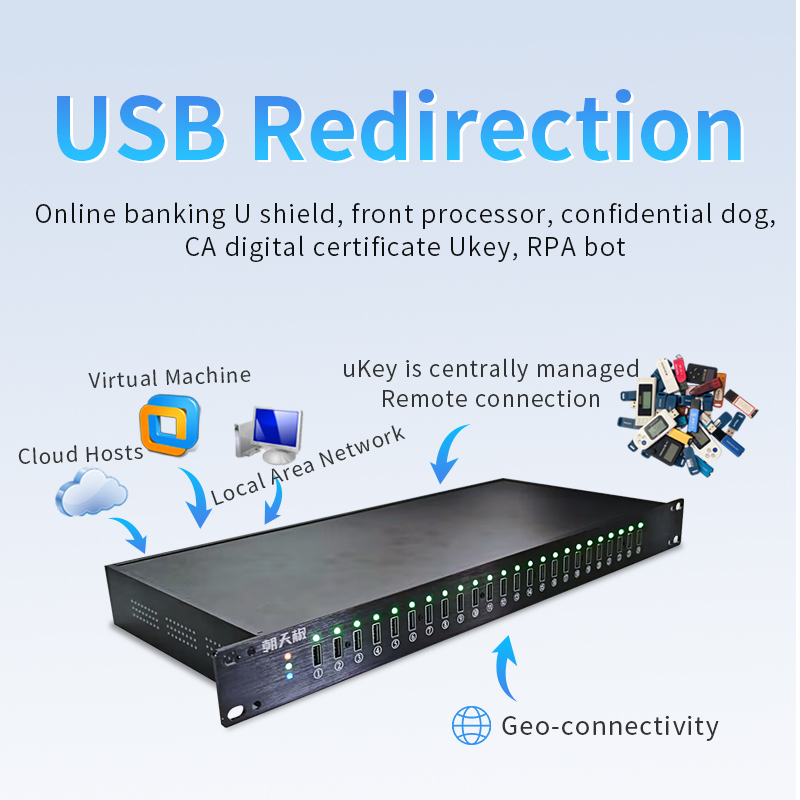
In our modern digital world, the need to connect to hardware from a distance is very common. Whether you are an IT pro or a remote worker, a USB Redirector provides the best bridge to turn physical tools into network resources. By using a USB Redirector, you can bypass the limits of short cables and reach connected USB devices across any distance. To get a professional and stable setup, many experts use the ChilliSky USB Server. This dedicated Ethernet USB device server provides a strong base for high-speed redirection. By combining a robust USB Redirector with a high-quality hardware host, you can ensure that your remote USB tools are always ready. Consequently, remote clients across your office can work faster and better.
The Simple Logic of USB Redirector
To learn how to use a USB Redirector, you must first understand how it works. The system uses a “Server and Client” model. Essentially, the “Server” is where the hardware is plugged in. In contrast, the “Client” is where the user wants to use that hardware.
In a basic setup, the “Server” is just a computer with your devices. However, for a more reliable solution, the ChilliSky USB Server acts as a permanent host. This USB device server stays active on your network. It allows the USB Redirector software to wait for connection requests. Therefore, the first step is picking which machine will host the devices and which will access them.
Installing and Setting Up the Server Side
The setup process starts at the source. If you use a hardware host like the ChilliSky USB Server, the “Server” logic is already inside the box. You simply connect the server to your network using a Gigabit Ethernet cable. Then, you plug your devices into the available USB ports.
If you use software as your server, you must install the USB Redirector (Server version) on the host PC. Once it is installed, follow these easy steps:
- First, open the app and find the list of connected USB devices.
- Second, select the specific device you want to share, such as USB dongles.
- Third, click the “Share” button.
- Now, the software uses the TCP IP protocol to show the device on the network.
At this point, the device is in a virtual “waiting room.” It is no longer usable by the local computer. This is because the USB Redirector has claimed it for the network.
Connecting the Client Side to Your USB Redirector
Once the server is ready, go to the computer where you need the hardware. This is the “Client” side of the setup. It could be a laptop at home or one of your virtual machines.
Install the USB Redirector (Client version) on this machine. After that, follow this logic:
- Launch the client software and click “Add Remote Device.”
- Type in the IP address of your ChilliSky USB Server or the host PC.
- The client will then look for USB devices over a network.
- Finally, pick the device you want and click “Connect.”
As soon as you connect, your computer will refresh. It will act exactly as if you just plugged the device into a local USB hub.
Managing Data Transfer and Performance
After you finish the setup, you must manage USB connections carefully. Usually, only one person can use a device at a time. A good USB Redirector shows you who is currently using a device.
If a friend is using a tool through the ChilliSky USB Server, you will see a “Busy” status. Furthermore, to keep data transfer fast, use a wired network. This is very important for USB 3.0 hardware. While USB over IP works on WiFi, Gigabit Ethernet is much more stable. It helps you move big files from a remote drive without any lag.
Why Software-Defined Hardware is Smart
Using a USB Redirector is part of a new trend called “software-defined hardware.” In the past, hardware was stuck in one place. Today, by sharing USB devices through a network, hardware becomes flexible.
For example, using a USB Redirector with virtual machines lets developers test tools without moving cables. Additionally, putting your USB dongles on a ChilliSky USB Server keeps them safe. You can keep the keys in a locked room. Meanwhile, the USB Redirector lets the whole team use them globally.
Solving Common Setup Problems
Sometimes, you might face small issues during the first install. Most problems are about network settings, not the hardware.
- Firewalls: Make sure your firewall allows the USB Redirector to pass through.
- IP Addresses: It is best to give your ChilliSky USB Server a static IP. This stops the connection from breaking.
- Power Supply: Ensure the server has a strong power supply. Some connected USB devices need a lot of energy to run well.
Summary of USB Redirector Benefits
Using a USB Redirector is easy once you know the Server and Client steps. By setting up the server at the source, you create a gateway. Then, by using the client software, you can access devices from anywhere.
This technology breaks the limits of USB ports. It helps your business stay fast and agile. Whether you use USB 2.0 for simple tasks or USB 3.0 for fast work, a USB Redirector is a great tool. It makes hardware management simple and keeps your team connected.
